In this second lecture we will introduce a tool called Data Version Control, often shortened to DVC, which can be used to automate some of the tasks involved in accessing data and managing the steps in data pipelines that we encountered in the previous lecture.
Importantly, as suggested by the name, DVC also provides a systematic way of keeping track of different versions of models and datasets. For data science workflows which are often very iterative and involve lots of going back and forth, training models with different values for hyperparameter and integrating new data that has become available, having an approach for systematically organizing our models and data becomes really important. It can help avoid the common issue for example of not being able to identify the particular model parameters which gave the best performance on some metric, or exactly reproducing all the steps that were used to produce a model output.
For the current lecture we will cover
Why using data version control specifically, and version control systems more generally is a good idea.
How we can use DVC to access and track data files and change between different tracked versions of files.
Learning outcomes
Recognize the need for version control when working with code and data files.
Explain how version control systems like Git track changes.
Compare the use of Git and DVC for working with data files.
Apply DVC to track changes to data files.
Why do we need version control?
Before looking at data version control specifically, we will give a bit of an introduction to idea of version control systems in a more general settings. Let’s first consider why we need to use version control in the first place.
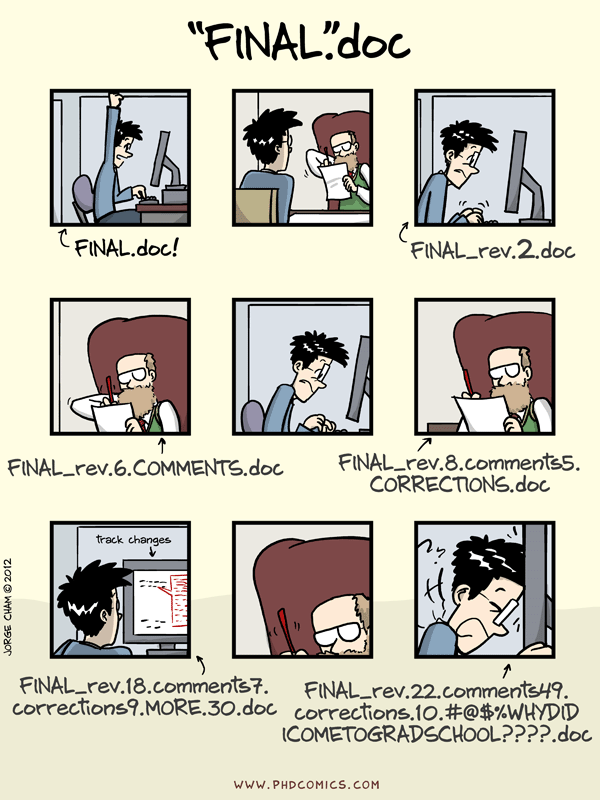
You may have seen this cartoon from PhD Comics by Jorge Cham before, which summarizes very well that using version control can be helpful in a range of contexts, via a situation many of you may have experienced yourself, that is editing a document in response to feedback from for example a supervisor or peer. A common ad-hoc approach used in such setting is to use naming schemes to try to track the different versions of a document. While this may work for a couple of sets of changes, once we start getting beyond this it becomes increasingly difficult to ensure we remain consistent in our naming scheme when tracking versions manually like this. It also is typically difficult to manage diverging sets of revisions of a file due to for example multiple people working on edits to a file and merging these back together.
Version control provides an alternative systematic approach to this problem.
Changes to a set of files are tracked by creating distinct checkpoints or commits as we work.
Importantly the relationship between the commits is recorded allowing us to move backwards and forward through the history of files.
As well as allow recording linear histories, version control systems will typically allow us to create diverging history where two different sets of changes are made to one set of files, resulting in a branching history. Conversely we can also merge changes from parallel lines of work back together, with systematic approaches for dealing with conflicting changes between files.
In addition to giving a systematic way of tracking changes, version control systems also ease working collaboratively with other people, typically allowing us to share the entire history of a project and have multiple all making changes to the same set of files.
There are several different version control systems available, with Git, Subversion and Mercurial all being currently used options. We will concentrate on Git here, with this being the most popular system currently, though a lot of the concepts are shared with other systems.
Tracking changes
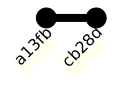
A central concept in Git is that of a commit, which as mentioned earlier corresponds to a checkpoint of the state of the files we are tracking. Every commit is associated with a unique hexadecimal string identifier or hash, which identifies the specific changes made to the files, when the changes were made and who made them. As well as the machine-oriented identifier, we will typically also associate each commit with a human readable commit message which summarizes the changes made. To help visualize how Git tracks changes we represent each commit as a node in a graph.
As we continue making changes to the files, we make further commits, typically each time there is self-contained set of changes we wish to record. Each commit we make directly depends on a previous commit the changes were made from, which we can visualize as as an edge connecting the nodes corresponding to each commit in the graph.
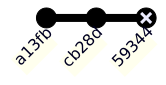
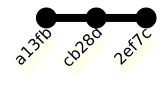
A common occurrence is that after we add a commit that we decide that we want to discard the changes made, for example because we made a mistake.
Git allows us to undo the changes associated with a commit, returning to an earlier point in the commit history, before making different changes and making a new commit.
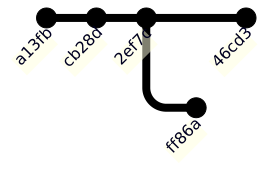
Another common situation is to want to explore parallel lines of development, for example investigating different approaches for solving a problem. Git allows to create a branch from the main line of development. When we create a branch the base commit may the end up being the parent to multiple child commits, represented visually here by the two commit nodes branching off from the base commit, one on the main line of development in blue and second on a separate branch in yellow.
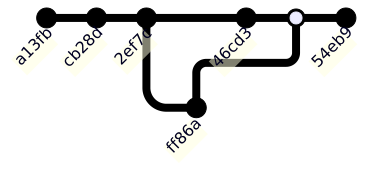
With branches we end up with a non-linear commit history, with our commit graph no longer a simple chain of commits. If we decide we want to integrate the changes from a branch into another branch such as our main line of development, we can merge the two branches creating a special type of commit called a merge commit which unlike standard commits has two parent commits. When we merge branches like this, if the changes on the two branches are in conflict with each other we must resolve the conflicts before we can merge, with Git having tools to help automate this process.
Why data version control?
Now that we understand better what what standard version control systems do, we can get back to the specific topic of interest, that is data version control. Data science related projects and workflows experience similar needs in this regards to other situations where we might use version control. Very commonly we will regularly make mistakes or revisit our assumptions and so want to go back to earlier versions of files. Often we also have new data becoming available over time, meaning we want to record updates to our models. As we mentioned previously most data workflows are also exploratory and iterative in nature with we wanting to investigate the performance of different variants of models - for example different parameter values or choices of model class or algorithm, or adding or removing stages from our overall data pipeline such as pre-processing steps.
While Git is most commonly applied to tracking changes in the source code for software projects, it can actually be used to track changes to any set of files, and so can equally be applied to data and model artefacts generated during a data science project as well as the associated code.
However, while Git can be used to track such files, there are some pitfalls which suggest a more bespoke solution such as DVC can be helpful.
One key issue is that Git is primarily targeted at text based files, and its approach for storing commits and displaying changes across files does not scale well to large files particularly those with binary formats such as images and videos, where even a perceptually small change can lead to significant bit level differences between files. In contrast DVC has an efficient system for dealing with tracking large files such as datasets.
Being generic in nature, Git also does not have built-in support for data science specific abstractions such data pipelines, parameters and performance metrics, while these all have first-class support in DVC, with useful functionality provided to allow automating pipelines and ensuring reproducibility.
DVC also offers tight integration with a variety of remote data providers, such as cloud storage services like Amazon Web Services Simple Storage Service.
While DVC offers several advantages over using Git directly for data workflows, a key point is that it builds on top of Git rather than replacing it, and so can be naturally used in conjunction with Git on a project, allowing for example code and data artefacts to be version controlled in the same repository.
Getting started with DVC
Now that we have seen why we would want to use data version control, we will now run through the basic workflow for using DVC and Git to track changes in a new project.
We will walkthrough of some of the key DVC commands, with this based on an official DVC tutorial which you can revisit in full after the lectures if you want to learn more.
To ensure the commands we run here don’t affect any other files on your system, we will first create a new directory called dvc-example to run the tutorial commands in, and change this to be the current working directory. In a bash shell we can use the mkdir and cd commands to do this.
mkdir dvc-examplecd dvc-example
Initializing project
The first step to use both Git and DVC with a project is to initialise the directory of interest as a Git and DVC repository to enable us to begin tracking changes. As we will see through this tutorial, as DVC builds on top of Git we will often use pairs of Git and DVC commands together. In this case we first use git init to initialise the directory as a Git repository before running the corresponding DVC command dvc init which performs additional DVC specific initialization.
git initdvc init
Initialized empty Git repository in /tmp/RtmpdtisEb/dvc-example-1fdf57aec7d9/.git/
Initialized DVC repository.

You can now commit the changes to git.

+---------------------------------------------------------------------+
|                                                                     |
|        DVC has enabled anonymous aggregate usage analytics.         |
|     Read the analytics documentation (and how to opt-out) here:     |
|             <https://dvc.org/doc/user-guide/analytics>              |
|                                                                     |
+---------------------------------------------------------------------+

What's next?
------------
- Check out the documentation: <https://dvc.org/doc>
- Get help and share ideas: <https://dvc.org/chat>
- Star us on GitHub: <https://github.com/treeverse/dvc>
The output we get from these commands tells us that DVC has created some new files and gives us a hint that we should now commit these changes using Git, so let’s follow that advice by creating a commit using the git commit command, passing a descriptive commit message as an argument.
The git commit command outputs a summary of the changes committed, which here tells us three files were added, all with a .dvc prefix. The two files ending with ignore are configuration files telling Git and DVC to ignore certain files matching specified patterns, which can be useful to avoid accidentally tracking files we shouldn’t be. The .dvc/config file stores project-specific configuration settings.
Now that we have both Git and DVC initialized we are ready to download a sample data file using DVC. DVC has several different commands available for accessing external data files, but we will start with one of the simplest, the dvc get command, here, which provides an easy way of downloading files from a remote Git or DVC repository.
The dvc get commands accepts two positional arguments, the first a URL to the remote Git repository and the second a path to a file or directory within this remote repository which we wish to download. Optionally we can also specify the path to write the downloaded file or directory to in the local repository using the -o option. Here we use dvc get to download an XML data file from a tutorial Git repository hosted by the developers of DVC on GitHub, downloading this data to a new directory data under the current directory.
dvc get https://github.com/iterative/dataset-registry \
    get-started/data.xml -o data/data.xml
This should create a directory called data in your new directory, with a file called data.xml inside it.
tree
.
└── data
    └── data.xml

2 directories, 1 file
Initializing tracking
By itself the dvc get command only fetches the specified file or directory from the remote repository, but does not deal with tracking this file locally.
To begin tracking changes to a data file with DVC we use the dvc add command with a single argument corresponding to the path to the file to track.
dvc add data/data.xml
To track the changes with git, run:

    git add data/data.xml.dvc data/.gitignore

To enable auto staging, run:

    dvc config core.autostage true
As we saw previously the output from the DVC command gives us some hints about what to do next, with we seeing that DVC has created two additional files it uses for tracking the dataset and it instructing use to stage these new files with Git and commit them. Again we have an ignore file created here, which in this case tells Git to ignore the original XML data file - this is wanted here as we don’t want to track changes to this large data file directly with Git. Instead DVC has additionally created a ‘proxy’ file with the same path and name as the original data file but suffixed with a .dvc extension. This proxy file contains some basic metadata about the associated file, specifically its size, path and a hash of its contents which with high probability will be different for two files with differing contents, and so can be used to identify if changes have been made to the file since the last commit.
We now do as instructed and use git add to stage these additional files and then commit them to the Git repository with an appropriate commit message.
git add data/data.xml.dvc data/.gitignoregit commit -m"Add initial version of dataset"
[main ec63c39] Add initial version of dataset
 2 files changed, 6 insertions(+)
 create mode 100644 data/.gitignore
 create mode 100644 data/data.xml.dvc
As we just mentioned rather than adding the data.xml file itself to a Git commit we instead committed the much smaller proxy file data.xml.dvc.
We can directly illustrate the difference in file size between the original and proxy by using the bash ls command to list the details of the files, from which we see that the original data file is 14 megabytes while the proxy file is only 80 bytes.
While we now know how to start tracking a data file using DVC, to be useful we need to also be able to make further changes to file and be able to move back and forth between different versions of the file.
Here we will simulate a change being made to the data file by just overwriting the data with its original contents repeated twice, first creating a temporary copy, then appending this copy to the original before removing the copy.
cp data/data.xml temp.xml # create a temporary copycat temp.xml >> data/data.xml # append the copy to the originalrm temp.xml # remove the copy
We can then check the size of the modified file as before using the ls command
From which we see that it has as expected doubled in size.
To track these modifications to the file with Git and DVC, we need to run equivalent add and commit commands as previously.
dvc add data/data.xmlgit add data/data.xml.dvc # as suggested by dvcgit commit -m"Double size of dataset"
To track the changes with git, run:

    git add data/data.xml.dvc

To enable auto staging, run:

    dvc config core.autostage true
[main 6c823b5] Double size of dataset
 1 file changed, 2 insertions(+), 2 deletions(-)
Switching versions
Now that we have committed some changes to the data file, let us consider how to switch to a different version of the file.
This happens in two stages. First we use Git to checkout the previous commit.
Here HEAD refers to the current commit and the tilde indicates one commit back relative to this so that HEAD~ indicates the previous commit, that is the one before we doubled the size of the data.
git checkout HEAD~
Note: switching to 'HEAD~'.

You are in 'detached HEAD' state. You can look around, make experimental
changes and commit them, and you can discard any commits you make in this
state without impacting any branches by switching back to a branch.

If you want to create a new branch to retain commits you create, you may
do so (now or later) by using -c with the switch command. Example:

  git switch -c <new-branch-name>

Or undo this operation with:

  git switch -

Turn off this advice by setting config variable advice.detachedHead to false

HEAD is now at ec63c39 Add initial version of dataset
Once we have moved back to the previous Git commit, we then need to separately instruct DVC to synchronise the files it is tracking to reflect the versions expected under this new commit using the dvc checkout command.
This identifies the version of the data file when the commit was made and checks it out, that is restores that version of the file to the local working directory.
dvc checkout
M data/data.xml
We can verify the changes have been made as expected by again using the ls command to view the file sizes
We see that the data file is back to its original size of 14 megabytes.
If we wanted to return to the newer version of the data file in which had been doubled, we would run git checkout main to checkout the latest commit on the main branch and then use dvc checkout to synchronize the DVC tracked files with this commit.
git checkout maindvc checkout
Previous HEAD position was ec63c39 Add initial version of dataset
Switched to branch 'main'
M       data/data.xml
We can verify that we then again are back to having the double data file.
That concludes our overview of the how to use Git and DVC to track changes to data files and switch between versions of those files. In the following lecture we will build on this by illustrating some more advanced features of DVC which allow us to track changes to models and whole data pipelines.